A network map drawn from LLDP and CDP
TarleyNode draws its network map from the LLDP and CDP neighbours your switches report, colours each device by health, and keeps a port map of which device is plugged into which switch port. Choose Edit to move devices, add links and save layouts.
What you get
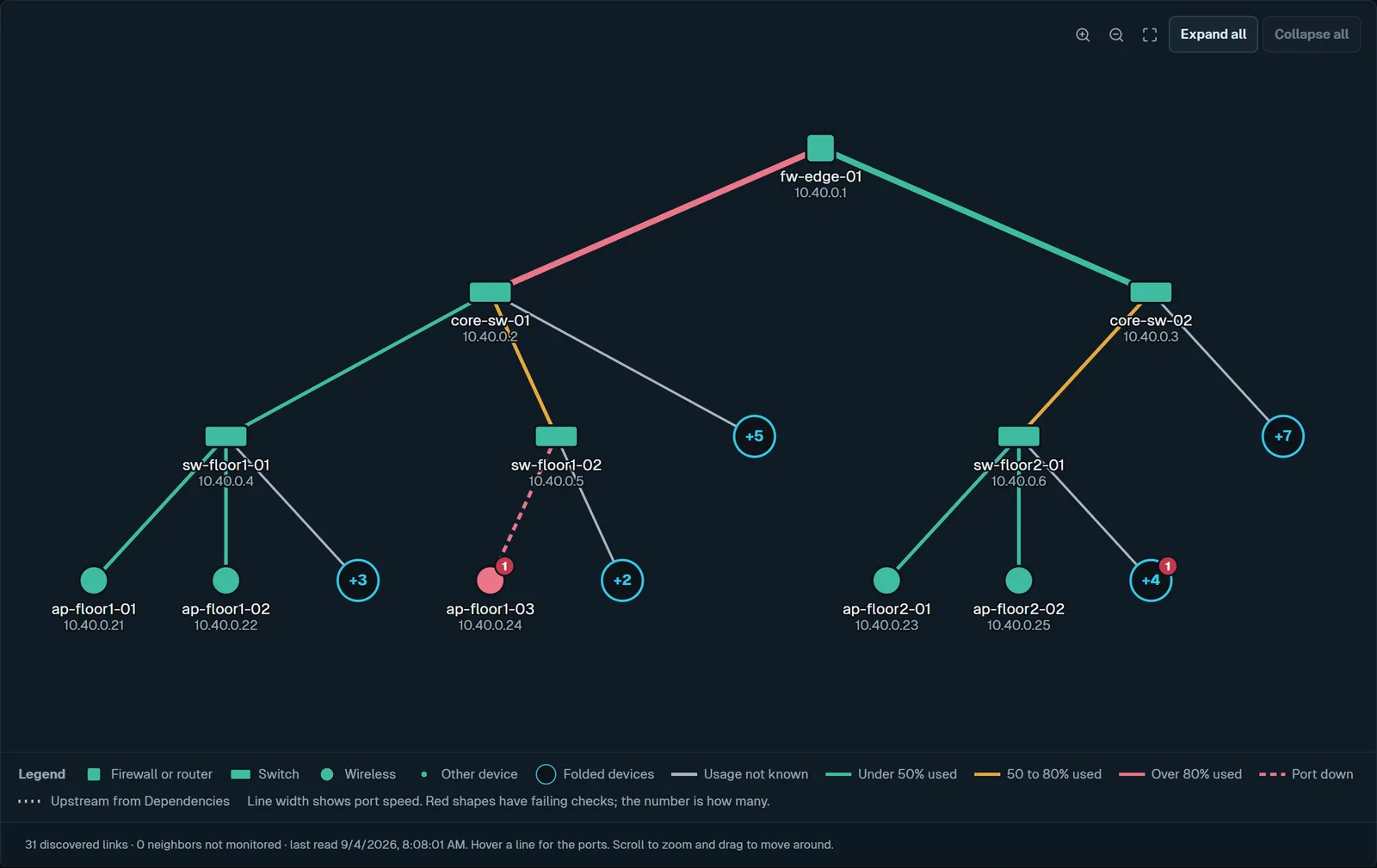
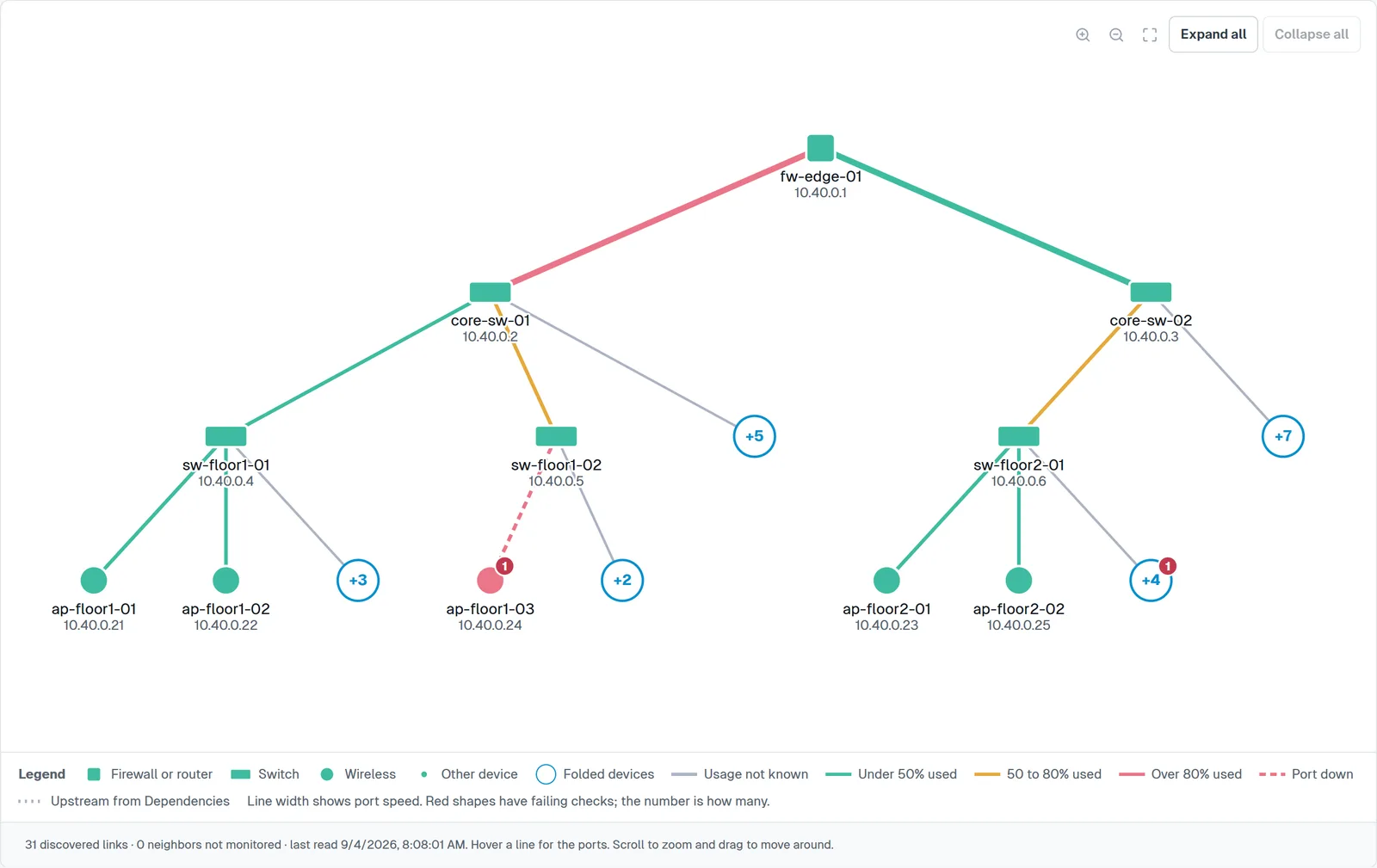
- A network map drawn from LLDP and CDP neighbours as a tree from the firewall or router down, with failing devices shown red and a badge counting their failing checks.
- Devices on one port folded into a +N group you can open.
- Line width for port speed and colour for port usage, with a port that is down drawn as a dashed red line.
- A legend, zoom and pan, and a list of devices without links.
- A switch port mapper: the port map shows which device is plugged into which port.
- Edit, to move devices, add links and save layouts.
- An address list for each site, showing which addresses are in use, monitored or free.
- Devices followed to their new address when DHCP moves them, with Follow IP changes, on by default for each site.
- Configuration backups over SSH with change history, for the switches and routers that allow SSH.
Set it up
- Turn on LLDP or CDP on your switches, and SNMP for the TarleyNode server’s address.
- Save the SNMP details under Discovery › Credential profiles and assign them to the switches under Logins.
- Open Network map. The map draws itself from the neighbours the switches report.
- Choose Edit to arrange it, add any links the switches do not report, and save the layout.
Why it helps when something fails
Turn on the daily rescan to be told about new devices; they are never added without you. Alert on new devices opens an incident the first time an unknown address appears. The map shows at a glance which part of the network a failed device sits behind. Pair it with dependencies, such as servers behind a switch, so only the switch alerts when it fails, and with the NOC wall screen for a view everyone can see.
Questions
What does the network map need from my switches?
LLDP or CDP, and SNMP access from the TarleyNode server, because the map draws itself from LLDP and CDP neighbours.
Does the map show which devices are down?
Yes. Devices on the map are coloured by health, so a failed switch or server stands out, and the incident inbox lists what needs attention first.
Can I change the layout?
Yes. Choose Edit to move devices, add links and save layouts.
Where is the map data kept?
On your own TarleyNode server, like every other reading. Monitoring results and credentials are never routed through a TarleyNode cloud service.
How do I find which switch port a device is on?
Open the port map, which shows which device is plugged into which port. Each site’s address list also shows which addresses are in use, monitored or free.
Is the network map an add-on?
No. Network maps are included in TarleyNode, alongside flow analysis, configuration backups and status pages.
What happens when a device gets a new address from DHCP?
With Follow IP changes, on by default, a scan that finds a monitored device’s MAC address at a new IP moves the device and its checks there, and the audit trail says so.
Related
TarleyNode is offered by invitation while it is new. Request a demo to try it on your own network.